Showing posts with label iphone. Show all posts

Computer Does Not Recognize Ipod Troubleshooting


Troubleshoot Computer Does Not Recognize Ipod Problem.


Many time all of sudden computer won't recognize your iPod.


If Computer does not recognize iPod do the following troubleshooting steps.


1. Try to attach iPod to different computer. Check it is mount on another computer or not. If iPod still not mounting, then remove all other USB device attach with computer. Only attach iPod, it may possible that iPod conflict with other USB devices.
2. Try to change the cable that you are using to mount iPod on computer. If still iPod not mount on computer that mean problem must be with iPod.


3. Now check hold switch is on or off. Make sure it is off.
4. Check battery is charged or not. Try to dry the battery and then charge again and mount iPod. If computer does not recognize iPod then update it.
5. Try to update firmware of you iPod from apple web site.
6. Also try to reset iPod or the one and only last solution restore iPod. Here is the detailed iPod troubleshooting for apple iPod does not recognized by iTunes computer. It explain various reason why iPod iPad does not recognized by computer. you can use that method to fix iPad not detected by computer and iPhone not found by PC. This is hardware related troubleshooting for iPhone.
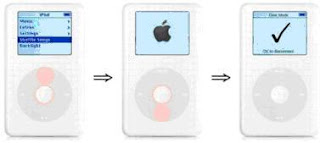
Howto Put Ipod in Disk Mode

Course of action how to put iPod in Disk Mode.

Some time iPod refuse to mount on computer. To troubleshoot this you need to start iPod to disk mode. This is best way to troubleshoot iPod disk mounting issue.

To put iPod into disk mode. 

1. Restart iPod and check that hold switch is off.

2. Press and hold following combination of switches simultaneously to reset iPod.

3. For first generation and 3rd generation press and hold menu and play/pause for 10 seconds.

4. For 4th generation ( photo, nano, video) press and hold menu and select button for 10 seconds.

Put iPod in Disk Mode

5. Restart iPod explained above and as you see the apple logo on the screen. Let it go and then simultaneously press and hold fast forward and rewind button. This will force iPod to start in disk mode. And iPod will mount on computer. If iPod will not mount on computer then restart your computer.

6. When you see do not disconnect icon on the iPod screen. It means iPod is in disk mode.

7. Now to exit from disk mode you have to reset iPod.

Security Bypass Screen Locked IPhone Ios Devices

Get access to screen locked iPhone without passcode and iOS tricks for security bypass iPhone.


Method 1 recover lost passcode to get access to screen locked iPhone.

 
            You can use this method on any iOS version including ios12.1,ios12 ios11 and older version of apple mobile operating system. It can remove screen lock of iPhone x, iPhone xr and iPhone xs and all models of ipad. You can remove passcode on any apple gadgets.
            When you set screen passcode on iPhone. Iphone screen password store inside iPhone operating system. First find any good iPhone root explorer. Get access to root files. Now the location of passcode is private/var/keychain. This is a folder inside root directory. And name of the file is keychain.db. This is mostly SQL database file and passcode is encrypted. So find some extractor who can recover data from this file. And you have iPhone screen unlock passcode.
           There are many blog available which can recover data, lost passcode from iPhone iPad and other gadgets. But those are paid services.

Method 2 security bypass screen locked iPhone.


              You can restore iPhone which remove passcode protection. But restore will delete all data on your apple mobile. Make sure you have latest backup on iTunes or icloud. When you restore iPhone, you can recover most of your data from backup. This way you can unlock screen locked iPhone.
IPHONE SCREEN UNLOCK

Method 3 how to screen unlock iPhone.


Here is tricks which allow you to access screen locked iPhone without passcode and recover photo data. This work on iOS 12 and 11.
For that just call from any other mobile to your iPhone.
Now you will see incoming call.   
You have option to answer it or respond with text messages.
Choose messages and then go to custom menu.
 Here we are trying to take photo gallery of password locked iPhone.   
Ask SIRI to enable voice over.
SIRI will read whatever tab you have selected on screen.
Tap on camera icon and swipe the screen. When siri reach to photo gallery select photo.
This will add photo to text message and it will transfer to caller iPhone.
You have successfully security bypass passcode locked iPhone. You have recovered iPhone photo data without knowing passcode. Now apple has fix this bug. I think this method only work if allow access when locked option is enable under SIRI. To check this got to setting – face id & passcode – check SIRI app.

Guide for RTT TTY Call on iPhone Ios Devices

Guide for RTT TTY call on iPhone,Mac computer and iOS devices.

What is RTT and TTY call on iPhone?

Now what is RTT real time text.  Along with voice call we are using text for communication.
           TTY is text telephone. Normally TTY are special devices used by people who has hearing problem. RTT is services used in calling app which is now available on most recent smartphone. Some TTY device can use with telephone line. As you type message on TTY device, it will send as voice call to other person. But with modern smartphone, you don’t need special devices. There is an app service installed within your mobile.
 

How to make RTT / TTY call on iPhone.

 
To make RTT call, turn on services app on iPhone or iOS devices. Go to setting – general – accessibility – turn on RTT / TTY services.
Now select contact, tap on make a call you will see three options.
1) Normal voice call.
2) RTT TTY call.
3) RTT / TTY relay call.
Choose option accordingly. Even when you make RTT call audio remains on. So voice call will active at that time. To turn off audio, tap on mike symbol and mute it.
 

Setup RTT call on MAC OS computer.

 
Open system preferences – accessibility – select RTT – enable RTT.  Now you will see RTT option when you make call.

Advantage of RTT call?

 
         It is mainly for people with hearing problem. But it is also used by normal people. As we are in meeting and we get urgent call. We cannot talk but we can text him. Another advantage is we are enjoying at Christmas fair having loud dj with 4g sound effect. We got a call. We are not able to listen other person sound because of high surrounding sound. We use RTT option and text him. 
 

Question about RTT / TTY call.

 
Will RTT call work only on iOS devices like iPhone?
No, RTT call also work on android devices.
 
Will all apple devices have RTT facility?
Apple gadgets iphone6 and later definitely have these features. Along with that ios 11.2 and later also have these features. At&t has its own app for this and there are apps available on playstore.
 
RTT is only text communication?
No, it is text and voice call.