Showing posts with label Iphone transfer. Show all posts

Ipad Iphone Music Transfer to Computer


Five different procedures for iPhone /iPad / iOS devices music transfer to computer with iTunes and without using iTunes.


First technique to transfer iPhone music is using apple music membership. 


                 You can register at apple music, it is free for 3 months and for student it has discount.  If you don’t find join apple music membership option. Then go to setting – music – and then turn on show apple music. You need to use same apple id for log in to get all your music on apple music.


                You can access all music libraries. For this you need to turn on iCloud music library on iPhone.

Go to setting – music – tap to turn on iCloud music library.

  From computer open iTunes – click on edit – then preferences – under general tab -tick iCloud music library.

On Mac computer, open iTunes – then preference and check iCloud music library. This way you can also transfer music songs which are not from iTunes store but from other sources.

If you don’t find music on apple music. Open iTunes – click on file -then library – select update iTunes library. Now you will find your music.

 You can also transfer songs from iPhone to android by this method. Just download apple music app android. And log in with the same apple id you are using on iPhone.


            To cancel apple music membership, just tap on music app – then profile icon – View apple id – subscription – cancel subscription.


Second technique for iPhone music transfer to computer without iTunes software.


Location of music on iPhone is root//private/var/mobile/Media/. Under this media folder all your music stored under /iTunes_control/ music. If you have sync iPhone with PC. Then look at c:\documents and settings\admin or username you logged in to computer\my documents\my music\iTunes.


Iphone Music Transfer To Computer
                   

Connect iPhone to computer. Open this PC, then iPhone folder. You do not see any data or folder. Actually windows use FAT or NTFS file system. Apple has different file system. Due to this windows can’t read iPhone folder.


               First install applemobiledevicesupport driver. Now you can access iPhone files. Copy those music from iPhone and paste on computer.


Third method for iPad music transfer to windows pc.

                 When you sync iPhone to computer or you take backup of iPhone with iTunes. This will transfer music library to iTunes backup on computer.


                 Location of iTunes backup image file on windows computer >  C: drive or drive on which os installed\documents and settings\admin\application data\apple computer\mobilesync\backup.  Or open iTunes – click on edit menu -preferences - then device - list of backup on iTunes. Right click to see location.

               On Mac computer > user/ user home directory/ library/applicationsupport / mobilesync / backup. This is location of iTunes backup on Mac computer. ITunes backup is an image data. You need to extract data from iTunes backup. During this ipad or iPhone video transfer to computer if iPhone does not recognize by iTunes. Then I have created separate post for how to fix iPhone not detected by computer and troubleshoot iPhone won’t turn on.


Technique 4 Copy iPhone music to computer using iCloud.

                      ICloud provides 5 GB free data space. You can also backup on iCloud. Go to setting – your name – iCloud – backup.

                 Install iCloud for windows. Then log in with apple id. Click on cloud with downward arrow to download on computer.


Technique 5 transfer purchase iPhone to computer.

                 Open iTunes. Log in with apple id. On account tab - Tap on purchase menu - not in my library. Now you will get list of music album which are not on computer, click on download.

Transfer Music from Ipod to MAC Computer

Steps for Transfer Music from iPhone to Macintosh Computer.

Transferring music from iPod to mac computer is easy, if you use iPod as a regular device rather than auto sync device. I know auto sync is important feature but for few minutes disable it.

Technics for iPod iPhone music transfer to MAC computer.


Now connect iPod to computer and open iTunes.
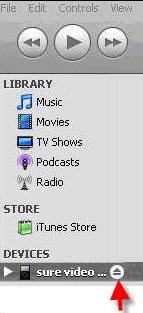
On left side pane, you will find your iPod (name of iPod). Click on it to open.
In the right edge bottom you can find many icons. One icon looks like a tiny iPod. Click on it. This will open configuration windows.

Transfer music from ipod to mac computer

You can see in picture. It is selected "Manually manage songs and playlists". If automatic update is selected then uncheck automatic update and select manual manage songs.

Open main iTunes windows.
Now to select all songs click on edit tab  select all.
Drag them all onto the library in the left column.

Copying will take time depend upon your music library. You have a restored iTunes library. Or you can say transferring music from iPod to mac computer is done.
If you want, you can go back to iTunes preferences and re-enable auto sync.


Note: I have not purchased music from iTunes music store. These steps for transfer music from iPod to mac computer are not for registered music. I don’t know what happen with registered music if you do copy like this.

Transfer Music from Ipod To another Ipod

Steps for how to transfer music from iPod to iPod. This will guide you how to transfer music from old iPod to new iPod.


transfer music from ipod to ipod
First you need to search the script named ipodfolderopener. This will run a series of terminal command, that open up all hidden folder in the invisible music folder in ipod’s invisible ipod control folder as a finder windows. This will open many windows on your screen so don’t worry about that.
 
Before executing script, you need to navigate iTunes's advance preferences pane and unchecked “copy files to iTunes music folder when adding to library”. Now execute the script. It will open many windows go to the foremost windows, select all music and drag and drop them into iTunes. And now back to finder, close the windows from which you have copied all song. Now move to next windows repeat previous step. Continue doing this for all open windows.


If you have large collection then this will take more than 30 minutes. But you need to do this only once. After that whenever you connect iPod to computer, iTunes automatically find all the tracks and consider it as other tracks installed in music folder of iPod library. You can also burn everything on CD.

  Transfer music from old iPod to new iPod.

 
After finishing all the steps explained above. First mount old iPod so that all those files appear in local iTunes music folder. Now mount new iPod and sync iTunes automatically. This will transfer the entire music library from computer and old iPod. This process is slower as compare to routine sync. But you need to do this only once. After sync iPod, navigate iTunes preferences and change it from automatic sync to manual sync.
Once you are done syncing all of the music to the new iPod. Click on it in the side pane, select its preferences from the bottom of the iTunes window and switch it from Automatic sync to Manual sync.

You have transferred music from one iPod to another iPod.

Now you are all done. Enjoy!

Transfer Music from IPod to MAC Computer

Move Data iPod to Macintosh Computer and techniques to Transfer music from iPod to iTunes on MAC PC.

The most common issue for iPod is to transfer music from iPod to iTunes or on a mac computer. Latest apple iPhone allow music transfer without software. This methods are for older devices for music transfer.


The steps for transfer music from iPod to mac computer.


Apple and iTunes are designed in such a way that music transfer one way from PC to iPod. This will force iPod owner to buy registered music. If you click on mounted iPod inside your computer. You will not find anything in it.

Here is the way to transfer music from iPod to iTunes on a mac computer.
Transfer Music from Ipod to MAC computer
First you need to download external software. Keep in mind iTunes is just a iPod manager software.
Install above utility on your computer. This software would help you to transfer music from iPod to iTunes. Here is another post that will help you to transfer music from ipod to itunes without using 3rd party software.


Open the installed software. This will allow you to copy song directly from ipod and put them on your selected location. It also allow to copy library, playlists and albums from iPod.

You can also search on internet for software according to your requirement for mac computer.
Note: You can also do some research on the internet and search for some utility application programs for Macs which would suit your needs.

Ipad Iphone only Apps Transfer to other Ios Devices

IPhone apps only transfer to another iPhone / iPad / iPod touch / iMac / iOS devices.


 Technique 1) iPhone app Transfer using airdrop. 

 You can also transfer files, music, video, data, games and contact to another iPhone using airdrop.


Airdrop is pre-installed app on iPhone and most of iOS devices including MacBook iMac. Now to share apps via airdrop, activate Bluetooth and Wi-Fi on both iOS devices. You can turn on airdrop from control center of iPhone and on mac computer use finder to activate airdrop.


  You have 3 options for airdrop –

 active for everyone,

contact only,

 or receiving off option. Select appropriate option.

          Select app on iPhone which you want to transfer to other iOS devices.

 – Tap share option – tap airdrop. Now you will see other iPhone icon. Select it and app will be transferred.

 If airdrop cause problem while transferring app. Then make sure no hotspot active for Wi-Fi or Bluetooth.


Technique 2) IPhone app transfer to iMac using app store and apple id.

Keep internet active on iPhone. Log in with apple id under iTunes. Now open app store – then purchase option – not on this iPhone – select download. This will download all the app on iPhone. This way you can transfer apps to new iPhone. You don’t need to pay again it is for free.


3) Use family sharing for apps transfer between iPhone and iOS devices. 


Go to setting – your iPhone name – family sharing  or  on Mac computer apple menu- Mac system preferences – iCloud - family sharing option and set up family and add member.  You can transfer apps store apps, music, songs, video and HD movies.


Technique 4) iPhone app transfer via iTunes restore and iCloud restore.

Restore new iPhone with old iPhone backup will transfer entire data. For that connect iPhone to computer. Open iTunes – click on summary tab, now under device, select new iPhone. On right side you will find iPhone restore and restore with backup option.

Click on restore with backup – select latest backup and restore iPhone. Your apps are transferred.

You can also restore iPhone with iCloud.

   Here is another way for iphone data transfer to another iphone / ios devices no itunes no icloud require. Even you don’t need computer.

How to Transfer Music from Ipod to Computer

Download transfer music iPod to computer PC iTunes.

Below procedure can be used for transferring photo album, music from iPod touch to computer and moving selfie photo from iPod to iTunes computer. This process is useful for iPhone, iPod shuffle 4th generation and iPod nano all generation.
 Easy free way for how to transfer music songs from iPod to computer or iTunes. Best post for how to get songs from iPod to PC. This method is same for all type of iPod whether it is iPod nano, touch or shuffle to copy music. This post help to transfer music from iPod to PC or iTunes. But if you want to download songs to iPod. Here is the way how to Download Music to Ipod.

As a new to iPod, there are lot of question and problem about how to transfer music from iPod to computer and iTunes. For this you need to understand how iPod store music. This will help you to take back up of music library, if your computer get crashed.

Steps for how to transfer music iPod to computer.


1. First connect your iPod to computer and avoid iTunes auto sync.
2. To avoid auto-sync, press shift and ctrl key of keyboard, when you are connecting your iPod to computer.
3. Hold shift and ctrl keys and open iTunes (normally iTunes will open automatically when you connect iPod).
Don't let go of Shift+Ctrl.
• Wait until the iPod shows in the Source list under iTunes devices. (It takes sometime to show iPod in device of iTunes while, but don't let go of Shift+Ctrl)
Note: iTunes ark one pop up message to choose an existing library or to create a new one. Click on Create a new one so that it can just open.
Once it shows up, close iTunes.


Transfer Music Ipod to Computer

  You can find iPod into my computer as a Removable Disk usually drive E:, F: or G:). As iPod is shown as a drive to your computer. It may possible that some folder are hidden into iPod. You need to unhide them by following steps.

How to Unhide iPod music folder for transfer.


Go to tools > folder option then click on view tab > choose show hidden files and folders and click OK.

4. Find songs on iPod and copy them to some folder on computer hard disk. This will transfer music from iPod to computer.

Download Music Ipod to Computer

Location of iPod songs album for transfer to computer.

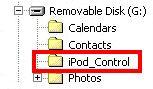
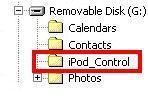
•Look in the iPod drive, and open a folder called iPod_Control.

Ipod Songs transfer

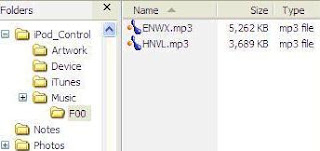
• There is one music folder. Insider music folder, many folder file named as fOO, FO1 so on. Tip:- To check the original name of the song and file just mouse over it.

Export Music Ipod to Computer

  If you want all the data from iPod. Copy whole music folder and If you want only some files. Select those individual files and copy them.

This continued procedure is also applicable to copying photo album from iPod to computer and iTunes also.

Note: All the hidden files that are on iPod are playable on iTunes, once you transfer them to computer's iTunes.
• The files copied have unintelligible four-letter file names. To reveal the names of the songs and other data tags. Add the files to the Windows Media Player or iTunes libraries or switch to “Tiles” view in Windows Explorer. Rename the file if necessary.
The transferred music will be playable without any restrictions, if the songs are ripped from CDs. If the songs or videos are bought from the iTunes music store, they will play in iTunes after you have “authorize” the computer. To authorize, try playing a purchased file. It will prompt you for your iTunes username and password. Up to five computers can be authorized at any one time.
Now import folder to iTunes music library.
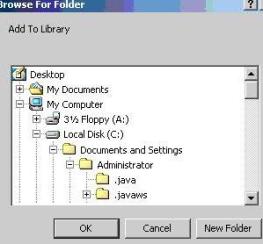
• Open iTunes and click on File > Add Folder to Library.


Move Music from Ipod to Computer

• Select the folder you want to import and click OK.

Transfer Music folder Ipod to Computer

  This will take some time and it may make your iPod hot while copying.

Above steps are same for all iPod like iPod touch generation 4th, 5th 6th generation, iPod shuffle generation and iPod nano all generations. It may possible that one or two steps may different. But logic remain same for all kind of apple iPod.


Advice: Set iTunes to manually manage iPod. This means you will have to drag-n-drop new stuff onto the iPod yourself. This will good for newbie to iPod.

How to Transfer Music from IPod to Itunes

Transfer music from iPod to iTunes.


You can also use this method to Transfer copy video HD movies form iPod to computer and transferring movie mp4 iPod to iTunes and another iPod. This process is also applicable to iPhone, iPod touch 4th, 5th 6th generation, iPod nano and iPod shuffle all generation. 


Here are the steps for transfer music from iPod to iTunes or computer.


Make sure your computer is installed with iTunes.
Step 1)
Now connect your iPod to computer via USB cable.
Computer may open iTunes and ask you that you want to sync iPod.

Click on NO.

2)
Your iPod is detected as a one of the drive may be as a G: drive on computer. Open my computer.

3)
You need to unhide file and folder. Here are the steps for windows vista and xp.

Transfer Music from Ipod to iTunes

In windows XP, unhide folder for  iTunes music transfer.

Open iPod drive.
Click on tools folder options as shown in figure.
View tabs and select show hidden files and folders.
Apply OK.


In windows vista: unhide folder for music transfer.

Open the iPod drive and click on organize.
Folder and search options.
View show hidden files and folders.


Here I have explained all about music transfer from apple iPod. But you can also apply this for HD movie and video transferring from iPod touch also.

Step4)
In iPod drive you will find a folder called ipod_control. Open ipod_control folder and you will see : 1. calendars 2. contacts 3. ipod_control 4. notes 5. photos.

transferring music from ipod to itunes

5)

Open the ipod_control folder. Then open the music folder > Copy entire folders (it should like these: F00, F01 ...) onto computer. Paste it to somewhere on desktop. This is the music that you want to transfer from iPod to iTunes or computer.

ITunes Music Transfer from Ipod
6)

Open iTunes and insert desktop folder into: library Music.

7)
Now sync iPod with this computer. You will not lose any of your music. I hope you can successfully transfer movie video and music from apple iPod nano, shuffle and iPod touch to computer and iTunes.

IPhone SMS Transfer to iPhone iPad

Transfer sms messages from one iPhone to another iPhone, copy text message mms, iMessages, data between two iPhones and how to transfer sms text msgs from old iPad to new iPad.


Iphone sms (Short Message Service) transferring can be done by two ways. 

First method: How to transfer SMS iPhone to iPhone.


You take back up of old iPhone to computer by iTunes,iCloud, Dropbox or any cloud storage. Then you can restore new iPhone with old iPhone's back up. In this method you can transfer SMS from iPhone to another iPhone. This will erase all data of new iPhone. Many time it happen that you bought new iPhone and started to use it. After one month you realize that, you want to combine SMS, mms, imessages and text messages of old iPhone to new iPhone. As it is not possible that you carry both iPhone with you. In this method you transfer all of iPhone data to another iPhone.

Second method: How to Merge SMS of two iPhone to one iPhone. 

 
 You combine SMS of two iPhone to one iPhone without restoring iPhone. This method is used when you want to transfer only sms, text messages between two iPhone. Or you want to copy only SMS text messages from one iPhone to another iPhone.  I have created separate post for how to merge combine sms, text messages of two different iphone / ipad. By that method you can transfer only sms text messages from one iPhone to another iPhone. Or you can move sms mms from old iPad to another new iPad.


Steps for how to transfer sms from iPhone to another iPhone.

 
 How to move sms text messages of old iPad to new iPad.

                 This method is  applicable for transferring sms text messages from iPhone 12, iPhone XS, iPhone 11  to iPhone PLUS, iPhone 13, iPhone se and iPhone 6s plus. You can also use for copying sms from iPad pro, iPad air, iPad mini to iPad pro, iPad air, iPad mini.

Step 1. Connect your old one iPhone to computer. IPhone should appear in this PC or my computer.

Step 2. Open iTunes. Itunes found iPhone in device tab.

Step 3. On left hand side column of iTunes – select the old iPhone from which you want to move sms, text messages, mms and data to new iPhone.

Step 4.  Now you will make back up of iPhone. You can make backup of iPhone by iTunes and iCloud.

-To take iPhone backup by iCloud: 

 
You need to connect iPhone to WiFi internet.
-Once iPhone connected to internet.  Unlock iPhone screen.
- Tap on iPhone setting- tap on iCloud – turn on iCloud backup- then tap on backup now.

After completion of backup, iPhone backup will appear in storage – manage device –device name your iPhone name.

Take iPhone back up by iTunes:


-As you have connected iPhone to computer and you have opened iTunes - on left hand side you will find iPhone and all connected iOS devices. Select iPhone from which you want to copy SMS to another iPhone.

-  Click on summary tab. On right hand side, you will find the options as show in below image. Automatically backup on this computer, icloud and manual backup and restore. It also shows that when you have last backed up iPhone.


IPHONE SMS TRANSFER TO IPHONE

- Click on backup now.
- you will find all your back up of iTunes here- open iTunes – click on edit menu – click on preferences – click on device tab – this will provide you the list of all back up on computer iTunes library.

Merge two iPhone SMS to one iPhone

Step 5. Now connect another iPhone on which you want to transfer SMS text messages from iPhone.

 Step 6. Open iTunes.  Select the new iPhone on which you are moving SMS, mms from old iPhone.

Step 7.  Click on summary tab. Now  click on restore backup. Or right click on new iPhone on which you are transferring SMS from another iPhone. Then select restore from back up.

Step 8. This will provide the list of backup.  You should select backup of old iPhone and restore the new iPhone with old iPhone backup. This will restore contact, calendar, notes, text messages and setting on new iPhone. Keep in mind, this will not restore firmware.
 This will wipe out all data on new iPhone.

Step 9. It will take few minute to restore iPhone. Keep iPhone connected to computer until it restarts and sync with computer.

Step 10. Disconnect your iPhone from computer and check the messaging app. You will successfully transferred SMS to iPhone.